
Top 50 Raspberry Pi Projects (+8 Bonus Builds)
50 free Raspberry Pi and Pico projects from the official sites, plus 8 bonus builds. Filter by level and parts, follow a learning path, and learn each idea with interactive diagrams.
On this page
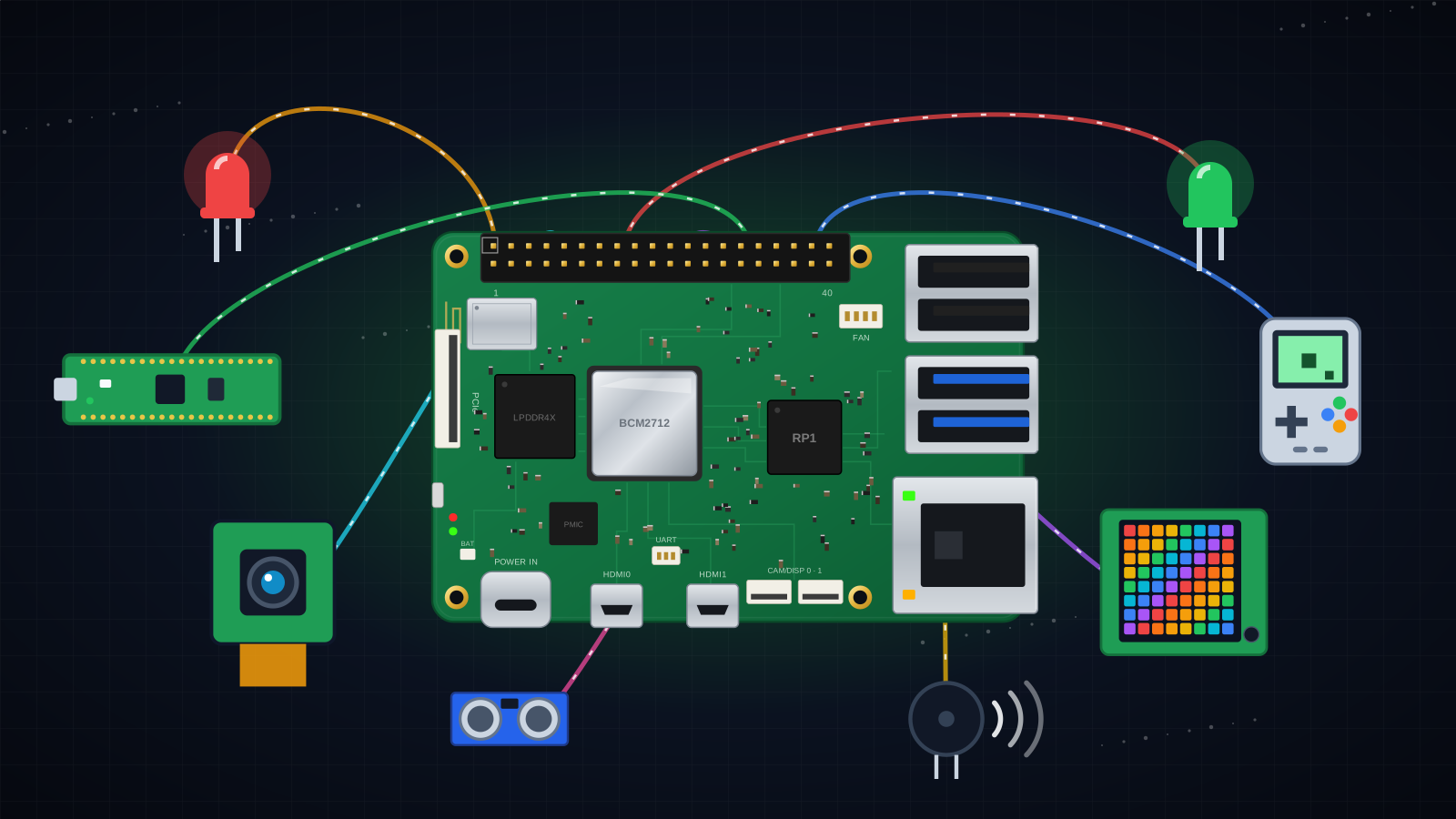
A Raspberry Pi is a small, low-cost computer. With a few parts, it can become a robot, a camera trap, a game console, or a web server. This guide collects 50 free projects from the official Raspberry Pi sites, plus 8 popular builds for adults. Each card gives a short summary, the parts list, and a link to the full guide. The diagrams explain the main ideas before you build.
How to use this page
- Read the build steps and the safety rules below.
- Select a path, or use the filter bar to find a project for your level and your parts.
- Read the "Learn the idea first" diagrams in that group.
- Open the full guide from the card and build the project.
How a Pi project is built
Six steps from an idea to a project that works
Most projects on this page use these six steps.
- Select a project from this page. Read the full guide first.
- Collect all the parts before you start.
- Write the operating system to a microSD card (Raspberry Pi), or install MicroPython (Pico).
- Disconnect the power. Then connect the circuit.
- Write the program.
- Run the program. If it does not operate correctly, change the code and test again.
Before you start: safety
Learning paths
Do not know where to start? Select a path. Each path puts 5 or 6 projects in a good order. Select a project name to go to its card.
First weekend
No solder and no special parts. Start here.
With kids
Craft materials, sounds, and lights. Each build is fast.
Road to a robot
Learn the pins, then build and upgrade one robot.
Pico only
One low-cost board. You do not set up an operating system.
Camera and nature
Photos, time-lapse, wildlife, and plant science.
Home server
Make the Pi a useful always-on box for your home.
The projects
Getting started (4)
Set up the board first. These four guides show the desktop, the settings, and remote access.
 #1
#1Getting started with Raspberry Pi
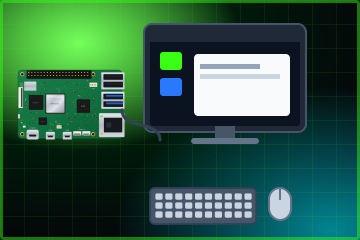
Connect the board to a screen, a keyboard, and a mouse. Complete the first-boot questions. Then use the desktop and the web browser.
You learn: Board ports, First-boot setup, Desktop basics
Parts you need
Monitor and HDMI cable, USB keyboard and mouse, power supply, microSD card. Headphones and an Ethernet cable are optional.
 #2
#2Setting up your Raspberry Pi
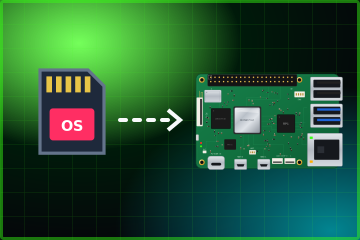
Select a model, a power supply, and storage. Write the operating system to the SD card. Start the Pi with a screen or without a screen (headless).
You learn: Raspberry Pi Imager, Headless setup, Power needs
Parts you need
The page helps you select power and storage. It does not give one fixed kit.
 #3
#3Using your Raspberry Pi
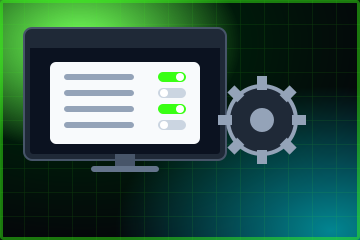
Change the desktop, keyboard, Wi-Fi, and sound settings. Install new software and update the software that you have.
You learn: System settings, Software updates
Parts you need
None. You need a Raspberry Pi that you set up before.
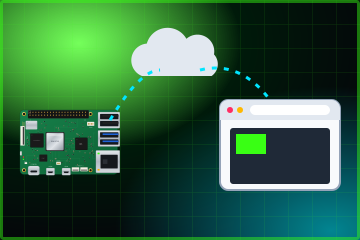 #4
#4Using Raspberry Pi Connect
Use a web browser on a different computer to see and control the Pi desktop. This also works when you are away from home.
You learn: Remote access, Screen share
Parts you need
A second computer with a browser. The page names a Raspberry Pi 4, 5, or 400 with 64-bit Raspberry Pi OS.
GPIO and physical computing (11)
These projects connect real parts to the pins of the Pi. A button gives an input. An LED or a buzzer is an output.
Learn the idea first
The 40-pin GPIO header
Select a pin or a colour. The same layout is on the Raspberry Pi 2, 3, 4, 5, Zero, and 400.
Two numbers for each pin. The pin number (1 to 40) is the physical position. The GPIO number is the name that your code uses. For example, pin 11 is GPIO 17. Python with GPIO Zero uses the GPIO number.
WARNINGDo not connect a 5 V pin to a GPIO pin. The GPIO pins use 3.3 V. 5 V can cause permanent damage to the Pi.
Input, decide, output
Push the red button to send a signal through the program.
Nearly all physical projects use this loop. An input gives information to the Pi. The program decides what to do. An output does the action. In the Santa detector, the input is a PIR sensor and the output is an alarm sound.
Why each LED needs a resistor
Select a resistor value. Watch the current and the brightness change.
An LED does not limit its own current. Without a resistor, too much current can flow. This can damage the LED or the pin. The resistor sets the current. A larger resistor gives less current and a dimmer light. The values here are approximate. The forward voltage of an LED changes with its colour.
How an ultrasonic sensor measures distance
Move the slider. The echo time changes with the distance.
The sensor sends a short ultrasonic pulse. The pulse reflects from your hand and comes back. The Pi measures the time. Sound moves at about 343 m/s. The pulse goes out and back, so divide by 2:
distance = time × 343 m/s ÷ 2
The ultrasonic theremin changes this distance into a note. The touch-free tap uses it to start a pump.
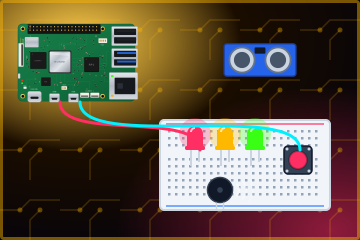 #5
#5Physical Computing with Python
Learn the GPIO header with Python. Make LEDs come on, read buttons, and operate a buzzer, sensors, and a motor.
You learn: GPIO Zero in Python, Inputs and outputs, Analogue input with an MCP3008
Parts you need
Breadboard, jumper wires, button, LEDs, resistors, buzzer, ultrasonic sensor, PIR, LDR, capacitor, MCP3008, potentiometer, motor and motor controller, battery pack.
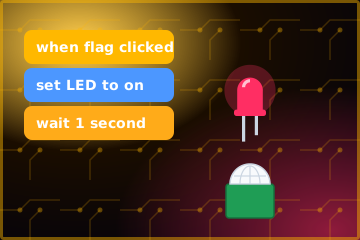 #6
#6Physical Computing with Scratch
Use Scratch blocks to control an LED, a button, a buzzer, and a motion sensor.
You learn: GPIO in Scratch, Event blocks
Parts you need
LED, resistor (47 to 330 ohm), button, buzzer, PIR, jumper leads. The page names a Raspberry Pi 4.
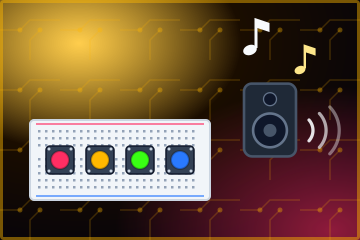 #7
#7GPIO music box
Each button plays a different sound. Push a button to hear its sound.
You learn: Button events, Sound files in Python
Parts you need
Breadboard, four buttons, jumper leads, speakers or headphones.
 #8
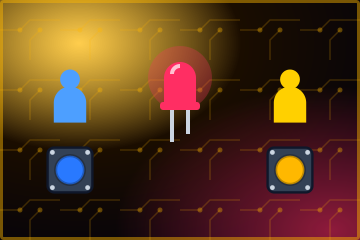
#8Python quick reaction game
An LED comes on after a random time. Two players try to push their button first.
You learn: Random delay, Read two inputs
Parts you need
Breadboard, one LED, 330 ohm resistor, jumper wires, two buttons.
 #9
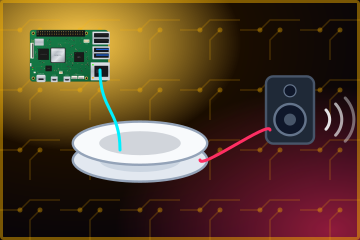
#9Whoopi cushion
Make a pressure switch from paper plates and foil. When a person sits on it, the speakers play a funny noise.
You learn: Make your own switch, Foil as a conductor
Parts you need
Crocodile clips, jumper leads, speakers, paper plates, foil, sponge, copper tape.
 #10
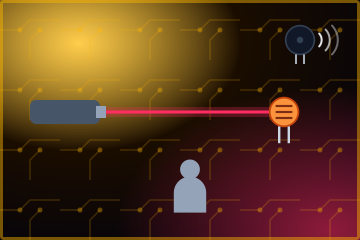
#10Raspberry Pi laser tripwire
Point a laser at a light sensor (LDR). When an object breaks the beam, the buzzer sounds.
You learn: Light sensor, Time measurement with a capacitor, Alarm logic
Parts you need
Breadboard, 1 µF capacitor, LDR, jumper leads, laser pointer, drinking straw, buzzer or speaker.
 #11
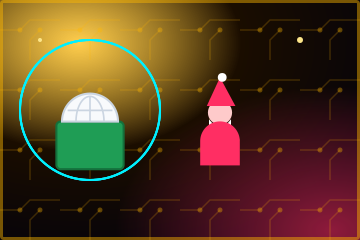
#11Santa detector
A motion sensor (PIR) sends a signal to Scratch. Scratch then starts an alarm when a person comes into the room.
You learn: PIR motion sensor, Scratch events
Parts you need
PIR motion sensor and socket-to-socket jumper leads. The page names a Raspberry Pi 4.
 #12
#12People in space
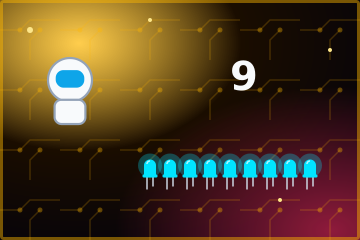
The Pi reads a public web count of the people in space. It then makes one LED come on for each person.
You learn: Read web data (API), Control many LEDs
Parts you need
Breadboard, 10 LEDs, 10 resistors (the page says 47 ohm), jumper leads.
 #13
#13Ultrasonic theremin
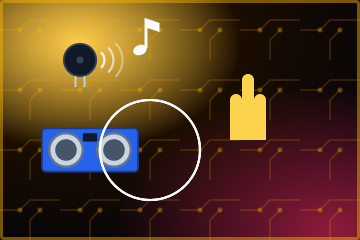
Move your hand near an ultrasonic sensor. The distance changes the note from the buzzer.
You learn: Measure distance, Change a value into a note
Parts you need
Breadboard, ultrasonic distance sensor, tonal buzzer, six jumper leads.
 #14
#14Scratch LED game
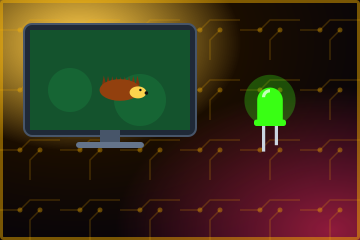
Play a hide-and-seek game in Scratch to find a hedgehog. A real LED on your desk is part of the game.
You learn: GPIO output from Scratch, Simple game logic
Parts you need
One LED, a resistor (47 to 330 ohm), three socket-to-socket jumper cables. Use the Scratch desktop app.
 #15
#15Wire loop game
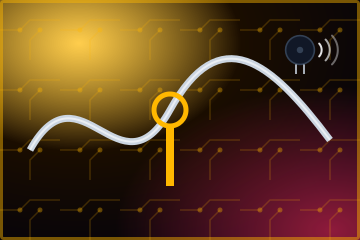
Move a wire loop along a foil track. If the loop touches the track, the buzzer sounds and Scratch counts the error.
You learn: A circuit as a switch, Count in Scratch
Parts you need
Buzzer, jumper and crocodile leads, pipe cleaners, foil, plasticine or Blu Tack.
Raspberry Pi Pico (8)
A Pico is a small microcontroller. It runs one program and has no desktop.
Learn the idea first
Raspberry Pi or Pico?
Both boards come from Raspberry Pi. They start in very different ways.
| Raspberry Pi 5 | Pico 2 / Pico | |
|---|---|---|
| What it is | A small computer | A microcontroller |
| Operating system | Yes (Raspberry Pi OS) | No. It runs MicroPython or C directly. |
| Programs at one time | Many | One |
| Desktop, HDMI, USB keyboard | Yes | No. Connect it to a computer and use Thonny. |
| Best for | Cameras, web servers, media, AI | Simple gadgets, toys, sensors on batteries |
PWM: how a digital pin makes a dim light
Move the slider to change the duty cycle.
PWM (pulse-width modulation) switches a pin on and off very fast. The duty cycle is the percentage of time that the pin is on. A high duty cycle makes an LED bright. A low duty cycle makes it dim. The Beating heart and LED firefly projects use this method. A buzzer uses the same idea, but the frequency of the pulses sets the musical note.
How a relay switches a big load from a small pin
Push the button to send a signal from the Pico.
A GPIO pin cannot supply a pump. A relay is a switch that a small current operates. Current in the coil makes a magnet. The magnet pulls the switch closed. The pump then receives power from its own 12 V supply. The two circuits do not connect electrically.
WARNINGDo not connect mains voltage to a relay in a hobby project. Use only low-voltage supplies, for example 5 V or 12 V.
 #16
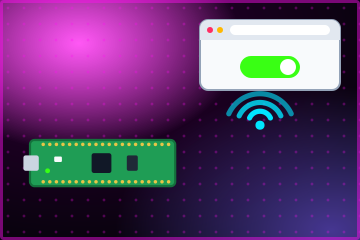
#16Getting started with Raspberry Pi Pico W
Install MicroPython on a Pico W and connect it to Wi-Fi. Serve a small web page that switches the onboard LED.
You learn: MicroPython, Wi-Fi on a microcontroller, A small web server
Parts you need
Raspberry Pi Pico W, micro USB data cable, and a computer with Thonny on the same network.
 #17
#17Getting started with Raspberry Pi Pico
Connect a Pico and install MicroPython. Make the onboard LED flash. Optional examples use a button and an analogue input.
You learn: Thonny editor, Digital and analogue pins
Parts you need
A Pico and a USB cable. The later examples use optional parts.
 #18
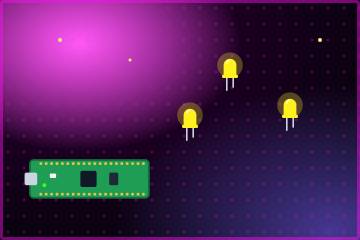
#18LED firefly
A Pico flashes an LED in a firefly pattern. A handmade wire switch starts the light.
You learn: Flash patterns, A handmade switch
Parts you need
Pico with headers, USB data cable, one LED, a resistor (75 to 220 ohm), jumper wires.
 #19
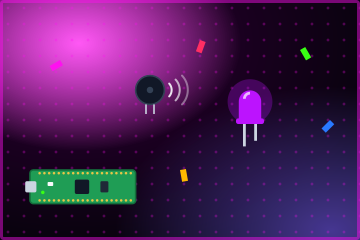
#19Party popper
Pull a card-and-foil switch. The Pico then shows colours on an RGB LED and plays a sound on a buzzer.
You learn: RGB LED colours, Buzzer tones
Parts you need
Pico with headers, USB data cable, passive buzzer, common-cathode RGB LED, three resistors, jumper wires, card, foil, string.
 #20
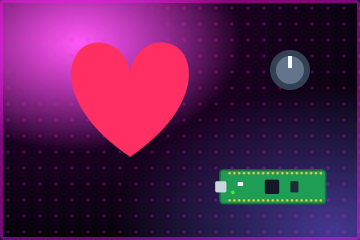
#20Beating heart
An LED in a paper heart pulses like a heartbeat. Turn a dial (potentiometer) to set the speed of the beat.
You learn: Analogue input, LED brightness with PWM
Parts you need
Pico with headers, USB cable, red LED with resistor, potentiometer, jumper wires, paper, tape.
 #21
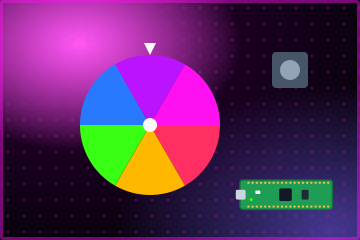
#21Time to make
A stepper motor turns a cardboard wheel. The wheel stops at a random prompt.
You learn: Stepper motor control, Random choice
Parts you need
Pico, USB cable, breadboard, jumper wires, stepper motor and driver, button, LED, 220 ohm resistor.
 #22
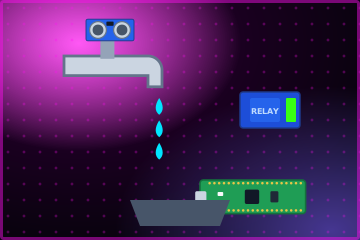
#22Touch-free tap
Put your hands near an ultrasonic sensor. The Pico switches a relay, and a small pump gives water.
You learn: Distance sensor, Relay switch, Pump control
Parts you need
Pico, 5 V USB supply, HC-SR04 ultrasonic sensor, relay, 5 to 12 V submersible pump.
 #23
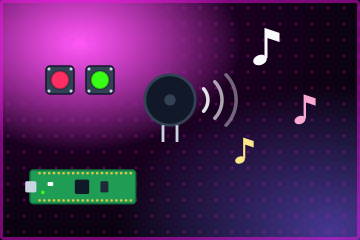
#23Sound machine
Use buttons or a dial to select sounds and tunes. A passive buzzer plays them.
You learn: Tones and frequency, Design a user input
Parts you need
Pico with headers, USB data cable, potentiometer or buttons, passive buzzer, jumper wires, craft materials.
Camera (6)
These projects use a Camera Module for photos, video, time-lapse, and plant science.
Learn the idea first
Time-lapse: from many photos to one video
Each new frame is one photo.
A time-lapse shows slow changes fast. The camera takes a photo at fixed intervals. Software joins the photos into a video. Stop motion uses the same idea, but you push a button for each frame. The cress egg heads and the push-button stop motion projects use this method.
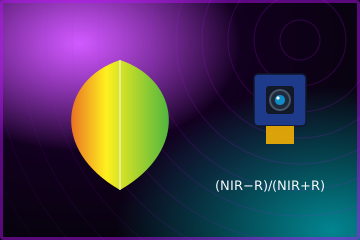
NDVI: see plant health with a camera
Compare a healthy leaf with a stressed leaf.
A healthy leaf absorbs red light for photosynthesis. It reflects a lot of near-infrared (NIR) light. A stressed leaf reflects less NIR and more red. A NoIR camera can see NIR. The formula gives a number from −1 to +1. A higher number shows a healthier plant. The values in this diagram are examples only.
 #24
#24Getting started with the Camera Module
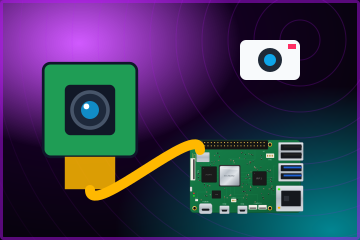
Connect a Camera Module to the Pi. Take photos and record video from the command line and from Python.
You learn: Camera ribbon cable, Photos and video in Python
Parts you need
A Camera Module. A Zero and a Pi 5 need the smaller ribbon cable.
 #25
#25Cress egg heads
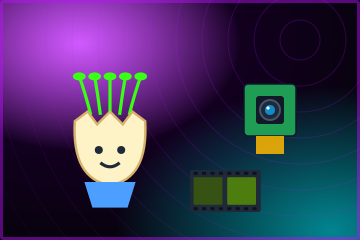
Grow cress in an eggshell. The camera takes a photo at set intervals. Join the photos into a time-lapse video.
You learn: Time-lapse, Timed capture
Parts you need
Camera Module, eggshell and egg cup, cotton wool, cress seeds.
 #26
#26Push-button stop motion
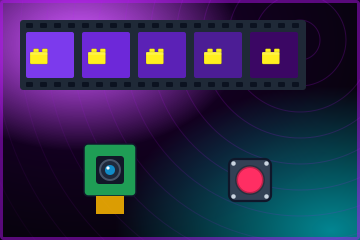
Each push of a GPIO button takes the next frame of a stop-motion film.
You learn: Capture from a button, Join frames into a video
Parts you need
Camera Module, full-size breadboard, two jumper leads, button.
 #27
#27Infrared bird box
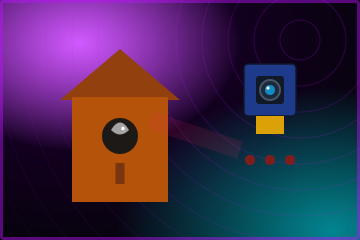
A NoIR camera and infrared LEDs record a nest box. The birds do not see a bright white light.
You learn: Infrared light, NoIR camera
Parts you need
NoIR camera module, female jumper leads, 220 ohm resistors, 5 mm infrared LEDs.
 #28
#28Capture plant health with NDVI
Use a filtered or NoIR camera and Python. Change leaf photos into a simple picture of plant health.
You learn: Near-infrared light, The NDVI formula, Image maths
Parts you need
High Quality Camera or NoIR module, with a red filter and an 850 nm NIR filter, or a Rosco 26 filter.
 #29Archived
The All-Seeing Pi
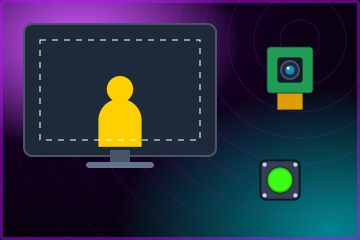
Make a photo booth with a touchscreen. Push a button to take a photo.
You learn: Camera preview, A simple photo app
Parts you need
Camera Module, touchscreen or a normal monitor, two buttons, breadboard, jumper leads.
Media centre (2)
The Pi plays music and video. It sends the picture to a TV through HDMI.
Learn the idea first
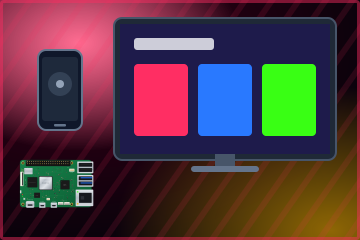
How a Pi media centre works
Video flows from left to right. Commands come from the phone.
The Pi reads a video from a file or from your network. It decodes the video and sends the picture and the sound to the TV through HDMI. A phone app on the same network can operate as the remote control.
 #30
#30Sense HAT music player
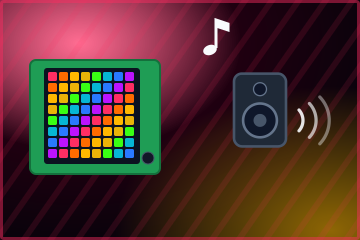
Tilt and push the Sense HAT to change the track and the volume. The LED matrix shows a light show.
You learn: Motion as an input, Media in Scratch
Parts you need
Sense HAT. Speakers or headphones are optional. The page says that a Zero does not work.
 #31
#31Video player: HTPC media centre
Install OSMC and Kodi to make a media player for your TV. Play a video file or a stream.
You learn: Media centre software, A phone as a remote
Parts you need
HDMI display or TV, keyboard, USB flash drive with a test video. A phone can be the remote.
Home sensing (2)
A sensor measures the room or the weather. The Pi reads the value and does an action.
Learn the idea first
How a motion sensor sees a person
The person moves through the zones of the sensor.
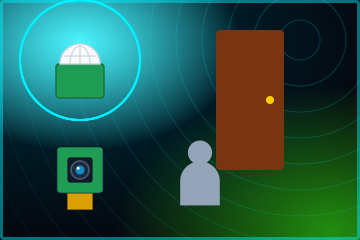
A PIR (passive infrared) sensor does not send a beam. It detects the heat of a body. Its lens divides the room into zones. When heat moves from one zone to the next zone, the sensor sets its output pin HIGH. The program then starts the camera or an alarm. The parent detector and the Santa detector use this method.
 #32
#32The parent detector
A motion sensor starts the camera. The Pi records a video clip when a person comes into the room.
You learn: PIR trigger, Record video on an event
Parts you need
Camera Module, PIR sensor, socket-to-socket jumper wires.
 #33
#33Build your own weather station
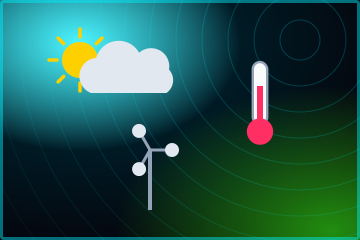
Record the pressure, temperature, and humidity. Optional gauges record wind and rain. Use sensors that can stay outdoors.
You learn: I2C sensors, Data logs, An outdoor build
Parts you need
BME280, DS18B20 probe, resistors, breadboard. Optional: wind and rain gauges and an MCP3008.
Robots (6)
These projects drive motors. Some robots use sensors to steer without your help.
Learn the idea first
How a line-following robot decides
Select a sensor state. See the action.
Each sensor tells the Pi one thing: "I see the line" or "I do not see the line". The program uses a small rule table to steer. This is a feedback loop. The robot reads the sensors, corrects its direction, and reads the sensors again, many times each second. This table shows a common rule set. Your project can use different rules.
 #34
#34Build a robot buggy
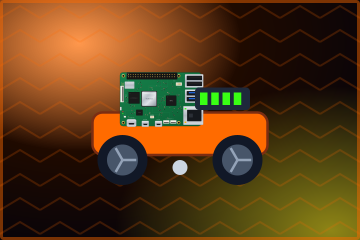
Assemble a chassis with two motors. Drive it with short Python commands.
You learn: Motor controller, Robot movement
Parts you need
Motor controller, two 3 to 6 V DC motors, wheels, AA battery holder and four AA cells, ball caster, jumper leads, USB power bank.
 #35
#35Build a line-following robot
Add two line sensors to your buggy. The buggy then follows a tape track without your help.
You learn: Sensor feedback loop, Turn logic
Parts you need
A finished buggy from the project above, two line sensors, jumper leads, solder, tape.
 #36
#36Explorer HAT buggy
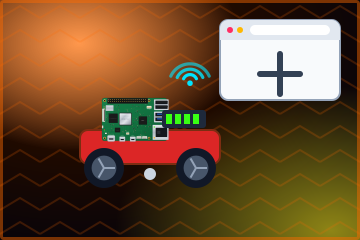
Make a simpler two-wheel robot with an Explorer HAT. Drive it from a different computer.
You learn: HAT add-on boards, Remote drive
Parts you need
Explorer HAT, four jumper leads, two motors, two wheels, USB power pack.
 #37
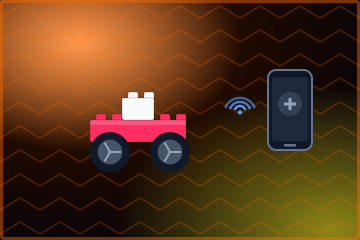
#37LEGO remote-controlled car
Use a phone and Bluetooth to steer two LEGO motors on a Build HAT.
You learn: Build HAT, Bluetooth control
Parts you need
Build HAT, two LEGO Technic motors, LEGO wheels, an Android phone or tablet, AA batteries.
 #38
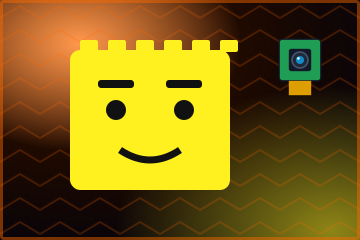
#38LEGO robot face
A camera and a machine-learning model detect objects. LEGO motors then move the eyebrows and the mouth.
You learn: Machine learning on the Pi, Motors that react
Parts you need
Build HAT, Camera Module and 30 cm ribbon, LEGO Technic motors, mini breadboard, jumper wires, two 8×8 LED matrices.
 #39
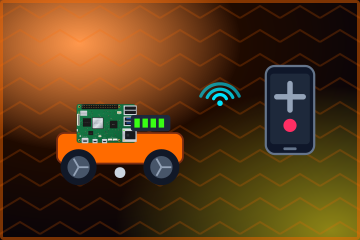
#39Remotely control your buggy
Add a remote control to a buggy that you built before. One option uses an Android phone.
You learn: Remote input options
Parts you need
A buggy that operates. The remote parts change with the option that you select.
Games and retro (6)
Make games on the Sense HAT, in the terminal, or with LEGO parts. Play old games on a handheld.
Learn the idea first
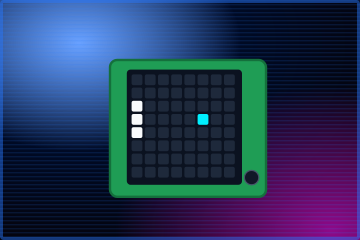
The game loop
The highlighted step runs now. The grid shows the result.
Every game on the Sense HAT uses a game loop. The loop reads the joystick or the tilt sensor. It moves the ball. It checks for hits on the bat or the wall. Then it draws the next picture on the LED grid. The loop repeats many times each second. Sense HAT Pong, Flappy Astronaut, and the LEGO game controller all use this idea.
 #40Archived
Sense HAT Pong
Play a one-player Pong game on the Sense HAT LED grid. You can also use the on-screen emulator.
You learn: A game loop, Collision checks
Parts you need
Sense HAT, or none if you use the emulator.
 #41
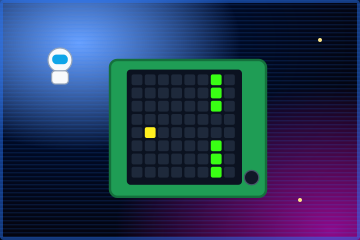
#41Flappy Astronaut
Tilt the Sense HAT to fly a character through gaps in a wall.
You learn: Tilt as an input, Scroll a game world
Parts you need
Sense HAT, or a computer with the emulator.
 #42
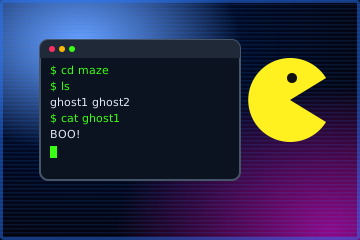
#42Pac-Man treasure hunt on the terminal
Follow a guided hunt in the terminal to find the ghosts. You do not need extra boards.
You learn: Terminal commands, Files and folders
Parts you need
None.
 #43
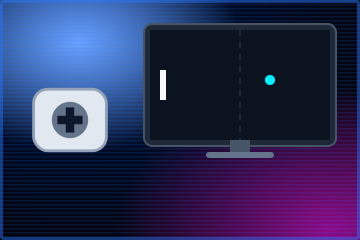
#43LEGO game controller
Turn the shaft of a LEGO motor to move the paddle in a Pong game on the screen.
You learn: A motor as a position sensor
Parts you need
Build HAT and one or more LEGO Technic motors. A buzzer is optional.
 #44
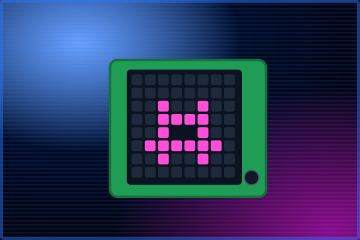
#44Pixel pet
Draw a small pet on the Sense HAT LED matrix. Show frames one after the other to make it move.
You learn: Pixel art, Animation frames
Parts you need
Sense HAT.
 #45
#45Build a handheld console
Put a Pi into a handheld case with a small screen and real buttons. Install RetroPie to play retro games.
You learn: RetroPie, Game emulators
Parts you need
The article uses a Retroflag GPi Case with a Raspberry Pi Zero, or a PiBoy DMG. Also a microSD card and batteries.
Networking (3)
The Pi can be a web server or a small cluster on your network.
Learn the idea first
What happens when you open a page on your Pi
The request goes right. The answer comes back left.
A web server waits for requests. Your browser sends a request for a page, for example /. Flask finds the function for that address (a route). The function sends back HTML. The browser then shows the page. In the LAMP project, Apache receives the request, PHP makes the page, and MariaDB stores the data.
How a cluster shares the work
Yellow blocks are parts of one job.
A cluster divides one big job into small parts. Each worker computer does one part at the same time. The client collects the results. Eight workers can finish some jobs nearly eight times faster. The OctaPi project uses this method.
 #46
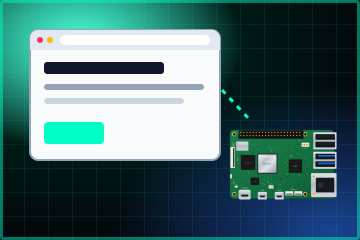
#46Build a Python web server with Flask
Use Flask to serve a small website from the Pi. Add more than one page and some HTML.
You learn: Web routes, HTML templates
Parts you need
None. Use a Raspberry Pi with the latest Raspberry Pi OS.
 #47
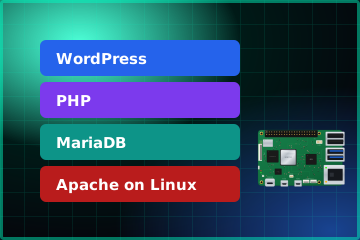
#47Build a LAMP web server with WordPress
Install Apache, PHP, and MariaDB. Then install WordPress and use it on your local network.
You learn: A web server stack, A database
Parts you need
None. Use a Raspberry Pi on your network.
 #48
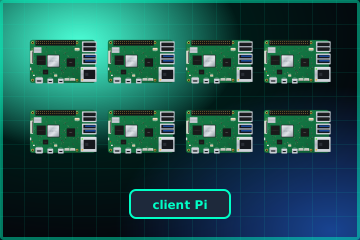
#48Build an OctaPi
Connect many Raspberry Pi computers on a private network. One Pi sends jobs, and the other Pis share the work.
You learn: Cluster computers, Shared tasks
Parts you need
Nine Raspberry Pi 3 boards, a wireless router, short micro USB cables, a power hub, an Ethernet cable. Unicorn HATs are optional.
Sense HAT (2)
The Sense HAT has an LED matrix, a joystick, and sensors for the environment and motion.
Learn the idea first
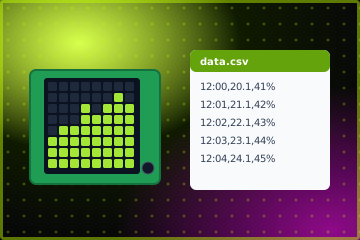
How a data logger records
Each tick adds one row to the file.
A data logger repeats two steps. It reads the sensors. Then it adds one line to a CSV file (comma-separated values). A spreadsheet can open the file and draw a chart. Set the program to start at boot, then the Pi can record with no screen or keyboard.
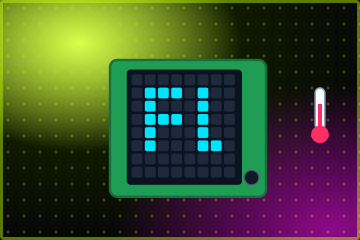 #49
#49Getting started with the Sense HAT
Show text and pictures on the LED matrix. Read the environment sensors on the board.
You learn: LED matrix, Temperature, humidity, and pressure
Parts you need
Sense HAT.
 #50
#50Sense HAT data logger
Record sensor values to a file at set intervals. Set the logger to start when the Pi starts.
You learn: Timed logs, CSV files, Start a program at boot
Parts you need
Sense HAT.
Beyond the basics (8)
These eight builds are popular with adult makers. They are not on the official projects site. Each link goes to the official documentation or a trusted guide.
Learn the idea first
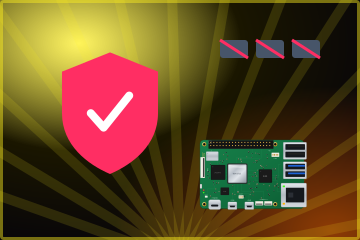
How Pi-hole blocks adverts for the whole network
Select a question. Watch where the answer comes from.
Before your device loads a page, it asks a DNS server for the address of each domain. Pi-hole becomes that DNS server for your home. If a domain is on a block list, Pi-hole sends back an empty address, so the advert does not load. For other domains, Pi-hole asks an upstream DNS server and sends the answer back.
CAUTIONThe quick install command runs a script from the internet. Read the script before you run it, or use one of the other install methods in the Pi-hole documentation.
 #B1
#B1Pi-hole network ad blocker
Use the Pi as the DNS server for your home network. It blocks requests to known advert and tracker domains for all devices.
You learn: DNS, A static IP address, An always-on service
Parts you need
None. A wired Ethernet connection is better than Wi-Fi.
 #B2
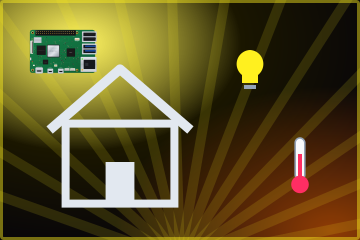
#B2Home Assistant hub
Install Home Assistant OS on a Raspberry Pi 4 or 5. Control smart lights, plugs, and sensors from one dashboard.
You learn: Home automation, Local control
Parts you need
Raspberry Pi 4 or 5 with 2 GB RAM or more, power supply, 32 GB A2 microSD card, Ethernet cable.
 #B3
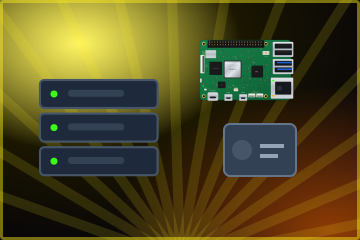
#B3Home NAS with OpenMediaVault
Connect a USB 3 drive to a Pi 4 and install OpenMediaVault. Share files and backups on your home network.
You learn: Network file shares, Backups
Parts you need
Raspberry Pi 4 (the guide uses 8 GB), USB 3.0 hard drive or SSD, power supply.
 #B4
#B4Local AI chat with the AI HAT+ 2
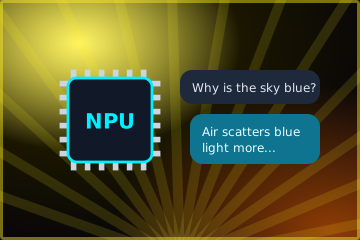
Install an AI HAT+ 2 on a Raspberry Pi 5. Use the Hailo Ollama server to run a small language model on the device.
You learn: NPU accelerators, Local language models, Data that stays at home
Parts you need
Raspberry Pi 5, AI HAT+ 2, 64-bit Raspberry Pi OS.
 #B5
#B5AI Camera object detection
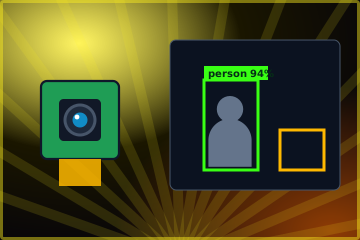
The AI Camera runs a neural network on its Sony IMX500 sensor. The Pi receives the image and a list of the objects that the camera found.
You learn: AI on the sensor, Object detection
Parts you need
Raspberry Pi AI Camera. The page names a Raspberry Pi 4 or 5. Other models need small changes.
 #B6
#B6MagicMirror² smart mirror
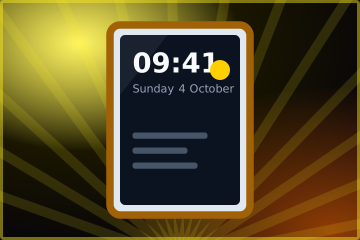
Put a monitor behind a two-way mirror. MagicMirror² shows the time, the weather, and your calendar through the glass.
You learn: Node.js apps, Modules and settings
Parts you need
A monitor. For the mirror effect, also a two-way mirror and a frame.
 #B7
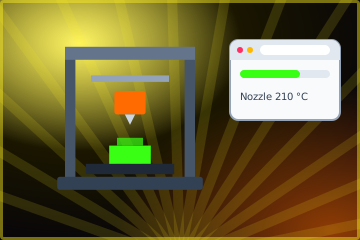
#B7OctoPrint 3D printer control
Write the OctoPi image with Raspberry Pi Imager. Then control your 3D printer and its prints from a web browser.
You learn: Printer control over USB, A web dashboard
Parts you need
Raspberry Pi 3B, 3B+, 4B, or Zero 2, a 3D printer with USB. A camera is optional.
 #B8
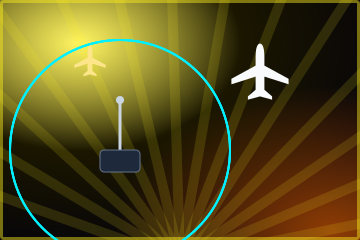
#B8PiAware flight tracker
Receive the ADS-B radio messages that aircraft send on 1090 MHz. Show the aircraft near you on a map.
You learn: Software-defined radio, ADS-B messages
Parts you need
Raspberry Pi 3, 4, or Zero W, power supply, USB SDR receiver, 1090 MHz antenna.
Starter kit: parts you use again and again
Many projects use the same small parts. Buy the six parts with the starter kit label together. Then you can build most of the GPIO projects. The count includes only projects 1 to 50.
| Part | What it does | Projects | For example |
|---|---|---|---|
| Jumper wires starter kit | Connect the pins of the Pi to the parts. | 25 | Physical Computing with Python, Physical Computing with Scratch, GPIO music box and 22 more |
| Breadboard starter kit | Holds the parts and connects them without solder. | 11 | Physical Computing with Python, GPIO music box, Python quick reaction game and 8 more |
| Resistors (47–330 Ω) starter kit | Limit the current. Use one with each LED. | 11 | Physical Computing with Python, Physical Computing with Scratch, Python quick reaction game and 8 more |
| LEDs starter kit | Give light when current flows through them. | 9 | Physical Computing with Python, Physical Computing with Scratch, Python quick reaction game and 6 more |
| Push buttons starter kit | Give an input when you push them. | 8 | Physical Computing with Python, Physical Computing with Scratch, GPIO music box and 5 more |
| Camera Module | Takes photos and video. Connect it with a ribbon cable. | 8 | Getting started with the Camera Module, Cress egg heads, Push-button stop motion and 5 more |
| Raspberry Pi Pico | Runs one MicroPython program. It is a low-cost second board. | 8 | Getting started with Raspberry Pi Pico W, Getting started with Raspberry Pi Pico, LED firefly and 5 more |
| Buzzer starter kit | Makes a sound or a tone. | 7 | Physical Computing with Python, Physical Computing with Scratch, Raspberry Pi laser tripwire and 4 more |
| Sense HAT | Gives an LED matrix, a joystick, and sensors on one board. | 6 | Sense HAT music player, Sense HAT Pong, Flappy Astronaut and 3 more |
| PIR motion sensor | Senses the heat of a person who moves. | 4 | Physical Computing with Python, Physical Computing with Scratch, Santa detector and 1 more |
| DC motors and controller | Turn wheels. The controller supplies the motor power. | 4 | Physical Computing with Python, Build a robot buggy, Build a line-following robot and 1 more |
| Ultrasonic sensor | Measures distance with sound pulses. | 3 | Physical Computing with Python, Ultrasonic theremin, Touch-free tap |
| Potentiometer | Gives a value that changes when you turn the dial. | 3 | Physical Computing with Python, Beating heart, Sound machine |
| Speakers or headphones | Play sound from the Pi. | 3 | GPIO music box, Whoopi cushion, Sense HAT music player |
| Build HAT + LEGO motors | Connects LEGO Technic motors and sensors to the Pi. | 3 | LEGO remote-controlled car, LEGO robot face, LEGO game controller |
| Light sensor (LDR) | Changes its resistance with the light level. | 2 | Physical Computing with Python, Raspberry Pi laser tripwire |
About this guide
The summaries on this page are original. They are not copies of the guides. Open each link for the full steps. Projects 1 to 50 come from the free Raspberry Pi Foundation projects site and from articles in Raspberry Pi Official Magazine. The levels for projects 1 to 50 come from the projects catalogue. The levels for builds B1 to B8 are our estimate.
Two projects have the label Archived: The All-Seeing Pi and Sense HAT Pong. Their pages are online, but the main catalogue does not list them. We checked all links on 4 October 2026. The parts lists show only what each page lists.
All pictures and diagrams on this page are original drawings. The body text uses the rules of ASD-STE100 Simplified Technical English: short sentences, one idea in each sentence, and active verbs.
Test what you read
Quick quiz

About the Author
Ajay Walia
AI {IT Architect} focusing on local-first multi-agent AI engineering, zero-data-egress systems. Ideator, Creator and Executor on Curious Bit.
Keep Reading

Knowledge Compounds, Labour Doesn't — Why Knowledge Agents Will Define the Next Decade of Infrastructure Outsourcing
For thirty years, infrastructure outsourcing has competed on scale. AI is about to move the contest to who owns the best organisational knowledge. This is my case for Knowledge Agents — specialist AI experts sitting on a structured knowledge layer built from thousands of engagements. It separates industry consensus from my own hypothesis, answers the 'doesn't Copilot already do this?' question, puts numbers on the business case, gives a phased roadmap, and makes the case for the buyer as well as the provider. Companion to my two pieces on the MCP agent fabric.
Memory Management in LLMs
A structured hub on how large language models use, store, and optimize memory — from the bytes that hold model weights on a GPU to how an agent remembers across sessions. Pick a topic to dive in.
LLMs Are Probability Engines, Not "Thinkers"
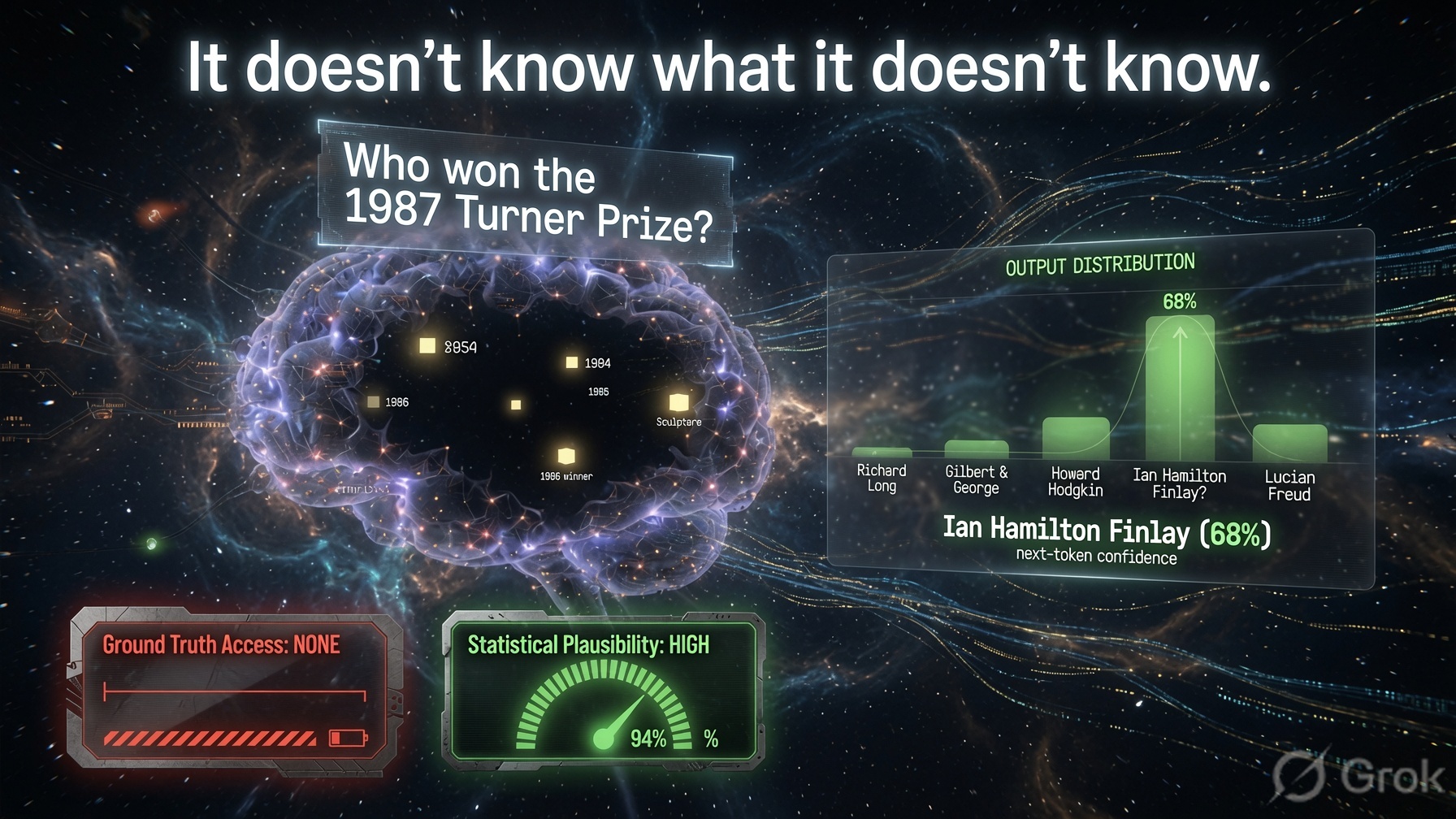
What ChatGPT and Claude actually are under the hood — a plain-English explainer of next-token prediction, softmax, attention, and why hallucinations are inevitable. Beginner to intermediate, with interactive animations.