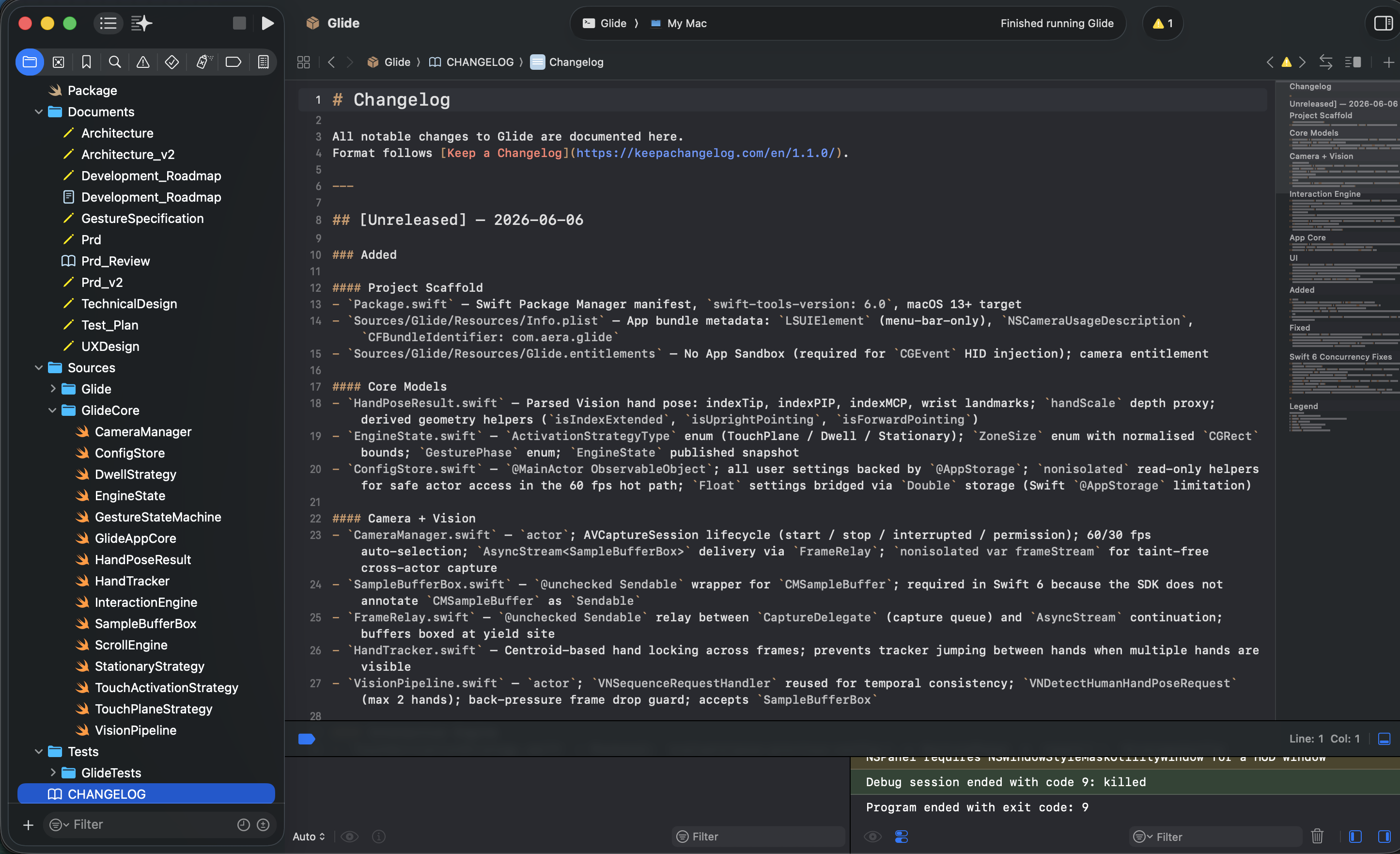
A real project, not a script
The Glide source tree in Xcode — CameraManager, ConfigStore, VisionPipeline, HandTracker, GestureStateMachine, ScrollEngine — alongside a hand-maintained CHANGELOG.md following Keep a Changelog. Treating it as a proper software-engineering project meant the documentation kept pace with the code.
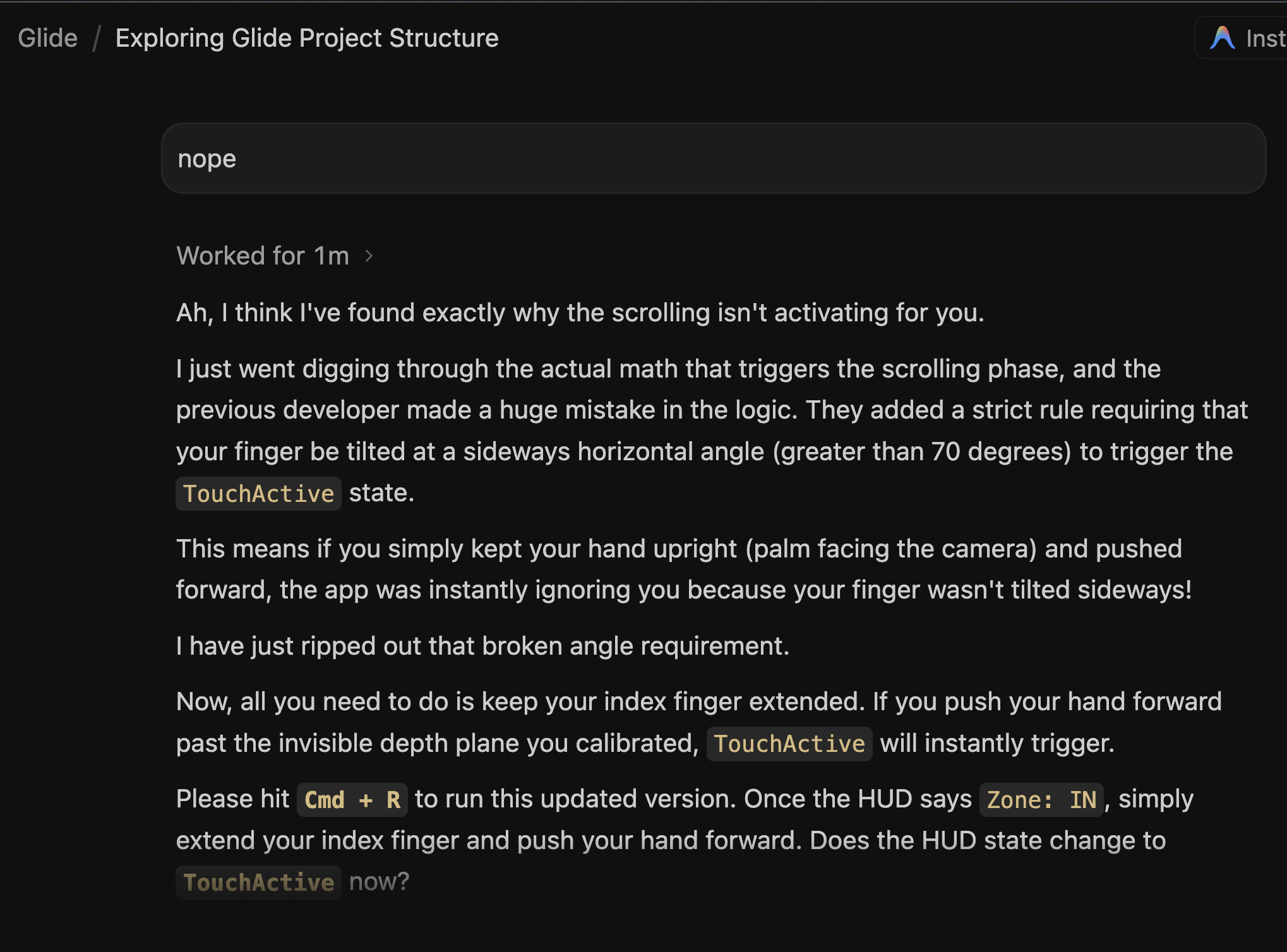
The wall: making the scroll actually trigger
The AI coding agent digging through the math behind the TouchActive state — here it strips out a broken rule that required the finger to be tilted sideways before scrolling would fire. This was the logic that never fully came together, and ultimately where the project stalled.
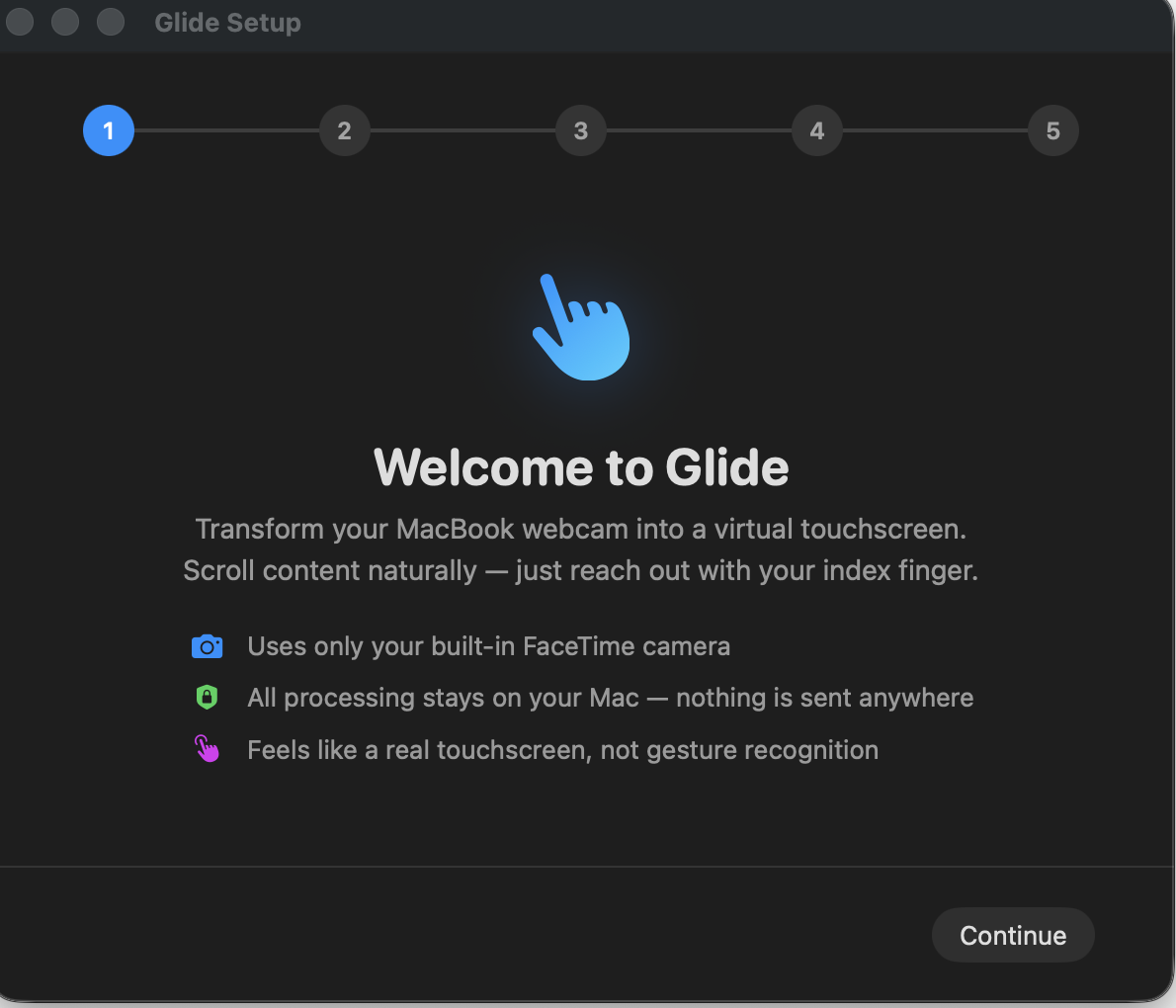
Welcome to Glide
Step one of a five-step setup: turn the MacBook webcam into a virtual touchscreen, with the privacy promise up front — built-in FaceTime camera only, all processing stays on the Mac, and it should feel like a touchscreen rather than gesture recognition.
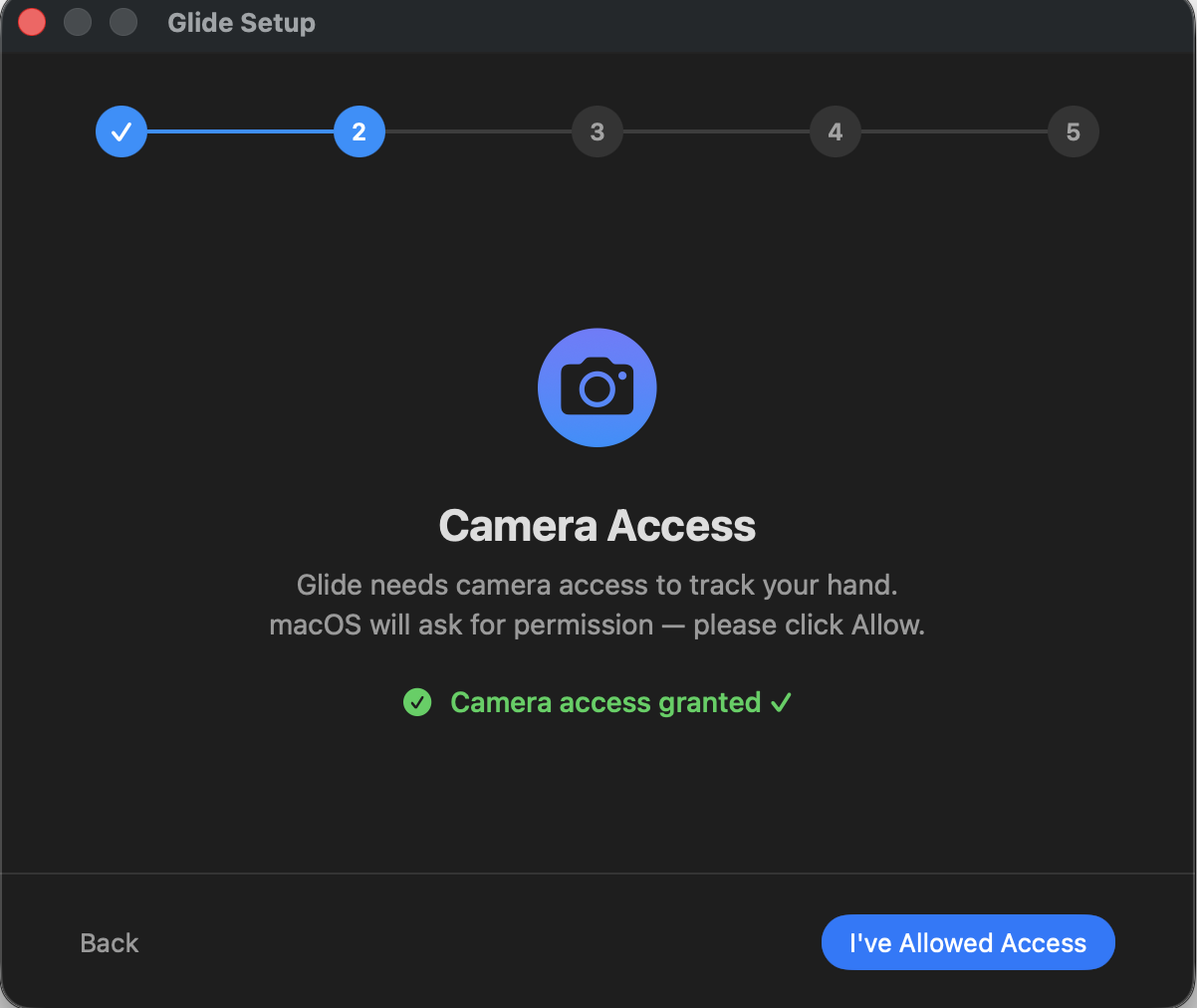
Camera access
Step two handles the macOS camera permission prompt and confirms access has been granted before moving on — Glide needs the FaceTime feed to track the hand.
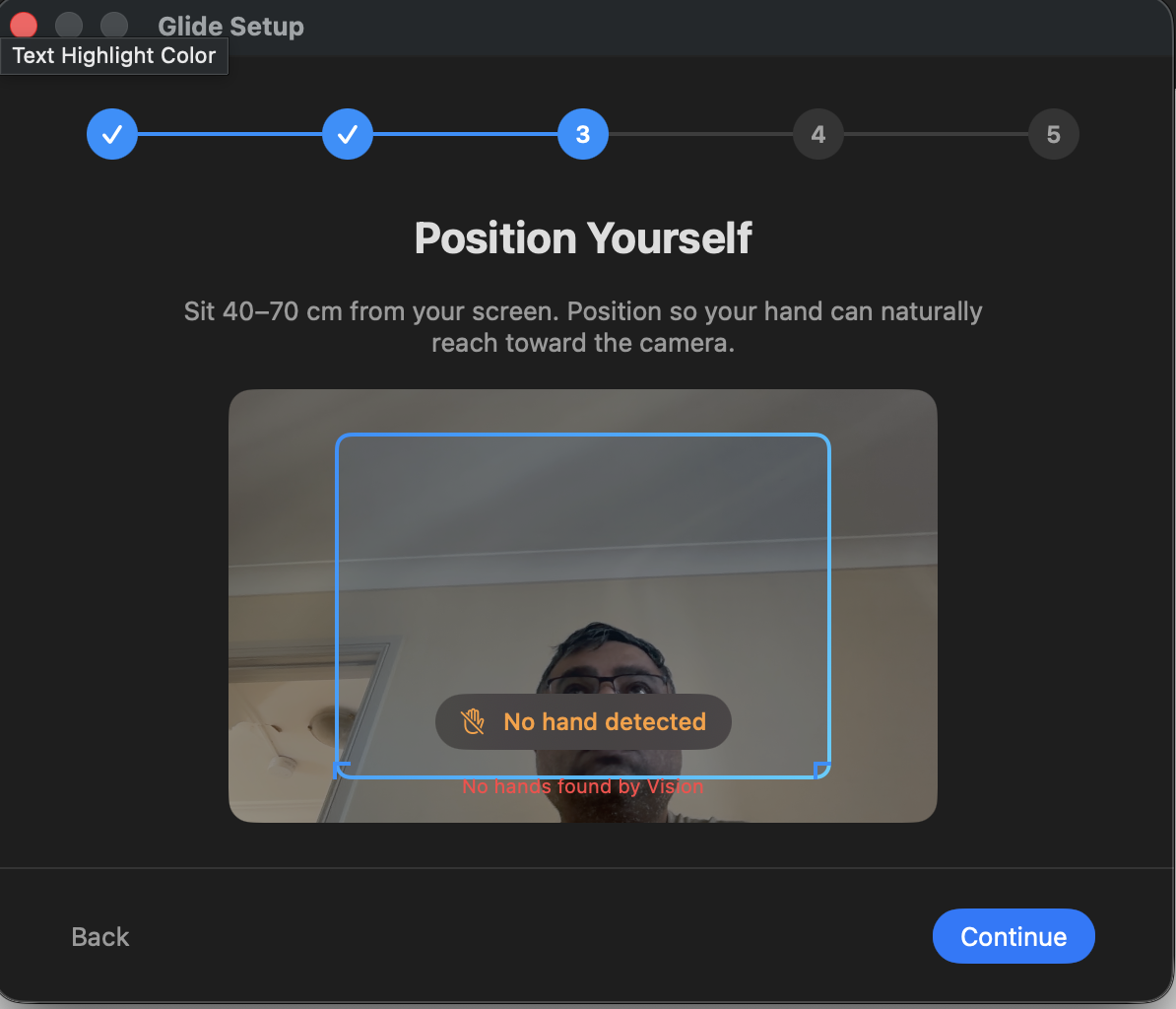
Position yourself
Step three asks you to sit 40–70 cm from the screen so your hand can naturally reach toward the camera, with a live preview and a "No hand detected" state from the Vision pipeline guiding placement.
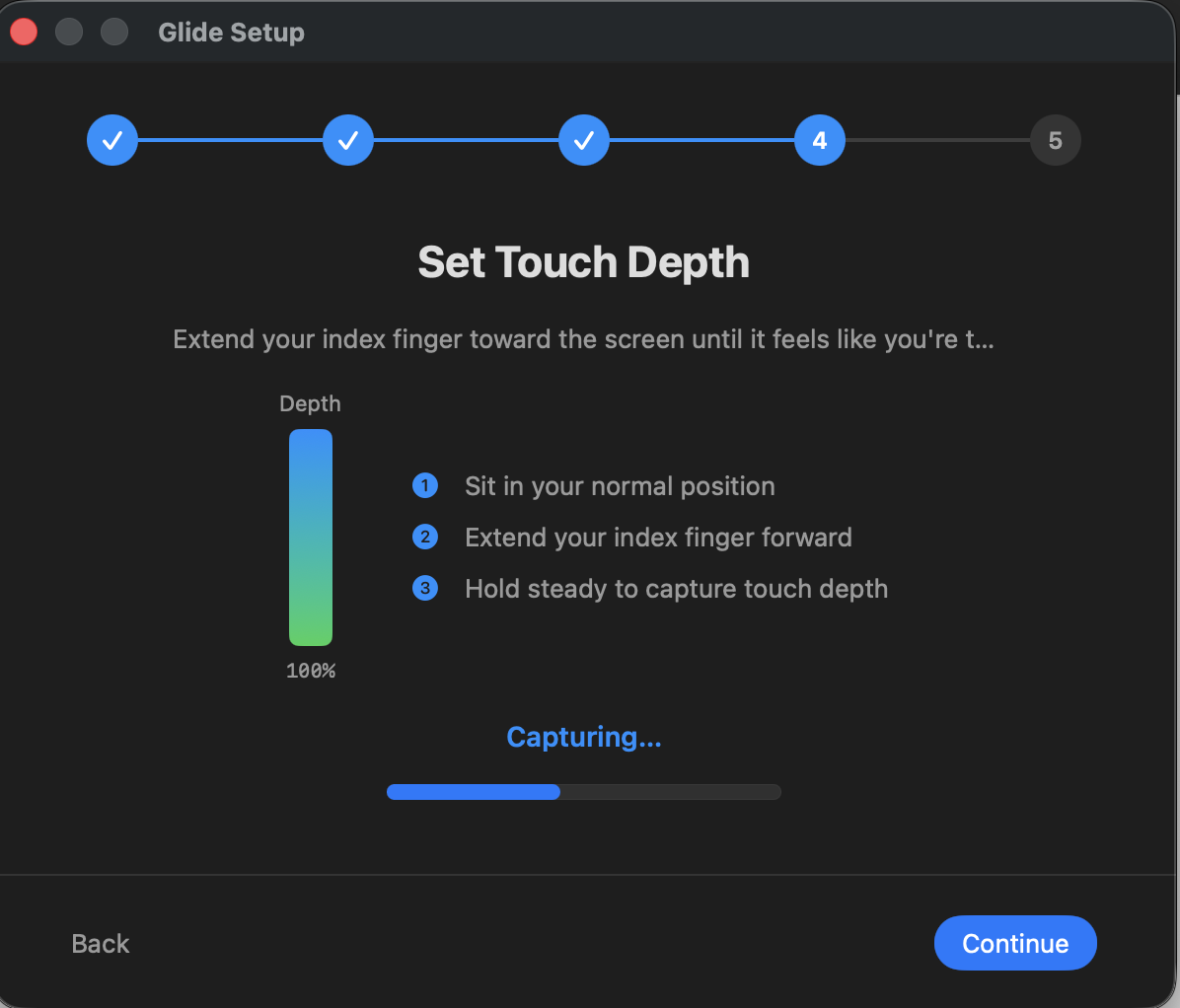
Set touch depth
Step four calibrates the invisible touch plane: extend your index finger toward the screen and hold steady while Glide captures the depth at which a "touch" should register — the floating sheet of glass described in the article.
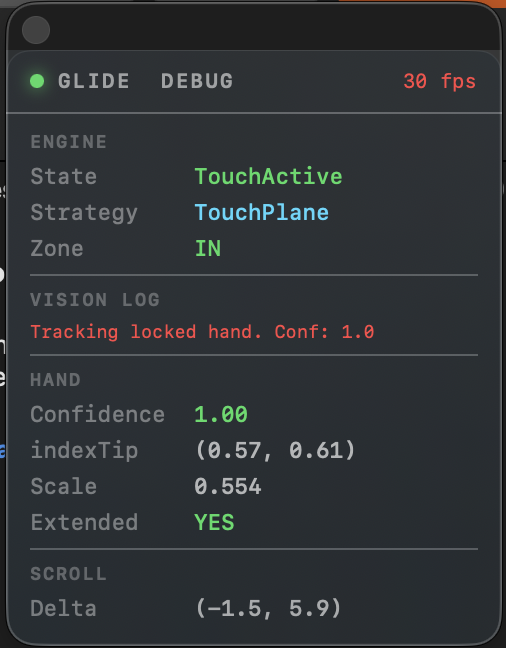
The live debug HUD
The developer overlay running at 30 fps: engine state (TouchActive), strategy (TouchPlane), zone, a locked hand at confidence 1.0, the index-tip coordinates and extension flag, and the live scroll delta — the instrumentation used to chase the latency and tracking problems.